SSL Automation with the ACME Protocol
On 10/04/2026 By Timoté Klein
This tutorial provides a step-by-step guide on how to install a TrustSign, Sectigo or Comodo SSL certificate via ACME using acme.sh. It covers the entire process, from prerequisites and environment setup to certificate issuance and installation. The most common errors encountered during deployment are also presented, along with their possible causes and recommended fixes.
This document is intended for customers who have subscribed to an ACME-compatible certificate and have the required credentials. To execute the commands properly, administrative privileges are required, either by logging in as root or by elevating privileges using sudo su.
Prerequisites before starting the tutorial
Before any installation, make sure your domain points to your server.
                Type: A

Name: @

Value: Server IP
Without this configuration, certificate generation will fail.
Step by step to install your SSL certificate with ACME
1. Installing acme.sh
Install the ACME client on the server.
curl https://get.acme.sh | sh && source ~/.bashrc
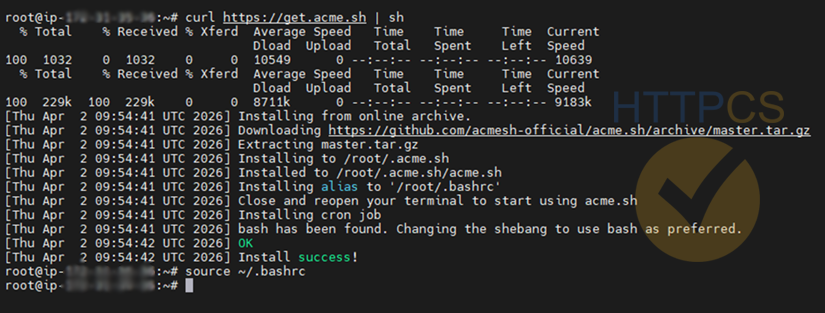
Possible errors :
- curl command blocked → check internet connection
- acme.sh not available → reinstall as root
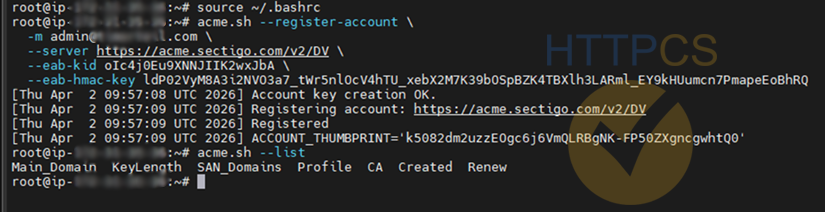
2. Account registration
Register the account using the EAB credentials provided when purchasing your certificate:
acme.sh --register-account \


-m admin@yourdomain.tld \


--server <URL provided in your HTTPCS dashboard> \


--eab-kid YOUR_KID \


--eab-hmac-key YOUR_HMAC
Possible errors :
- Incorrect EAB (kid/hmac) → verify copy/paste
- Wrong server URL → use the URL provided in your HTTPCS dashboard
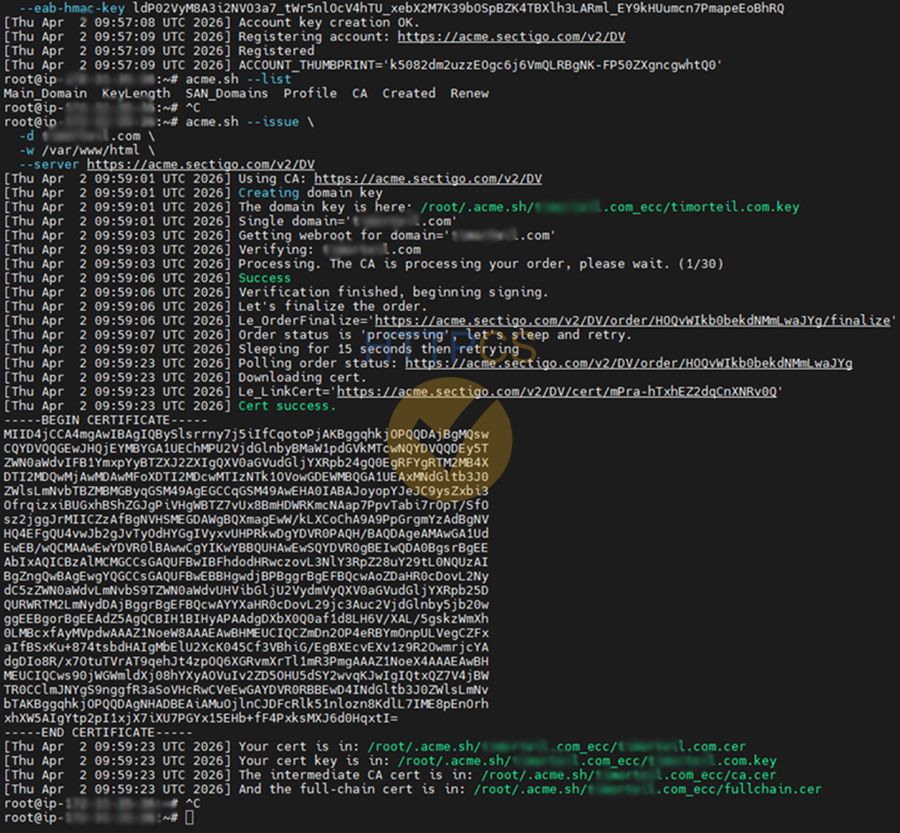
3. Certificate generation
Create the certificate using HTTP validation (webroot):
acme.sh --issue \


-d mydomain.tld \


-w /var/www/html \


--server <URL provided in your HTTPCS dashboard>
Possible errors :
- Port 80 closed → open firewall
- Wrong webroot → check /var/www/*
- Domain not pointing → check DNS A record
*: To find your root HTML directory, you can use the command ls /var/www/.
In this tutorial, the directory is named html, but this may differ in your case.

4. Certificate installation and system deployment
Install the certificate into /etc/ssl and reload Nginx.
acme.sh --install-cert -d mydomain.tld


--key-file /etc/ssl/private/mydomain-acme.key


--fullchain-file /etc/ssl/certs/mydomain-acme.crt


--reloadcmd "systemctl reload nginx"

ls -l /etc/ssl/private/


ls -l /etc/ssl/certs/
Possible errors :
- Permission denied → run as root
- Wrong path → verify SSL paths
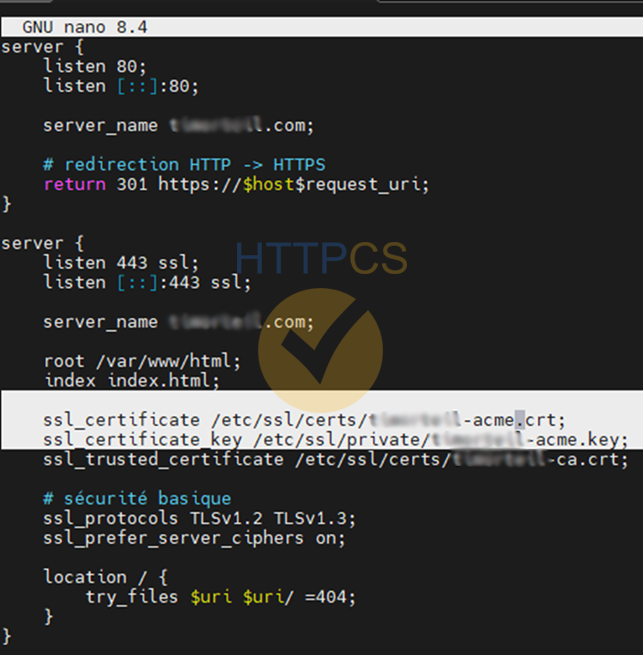
5. Nginx configuration
Configure Nginx to use the ACME certificate.
ssl_certificate /etc/ssl/certs/mydomain-acme.crt;


ssl_certificate_key /etc/ssl/private/mydomain-acme.key;


ssl_trusted_certificate /etc/ssl/certs/mydomain-ca.crt;


systemctl reload nginx
Possible errors :
- Wrong file loaded → check sites-enabled
- Forgot to reload nginx → systemctl reload nginx
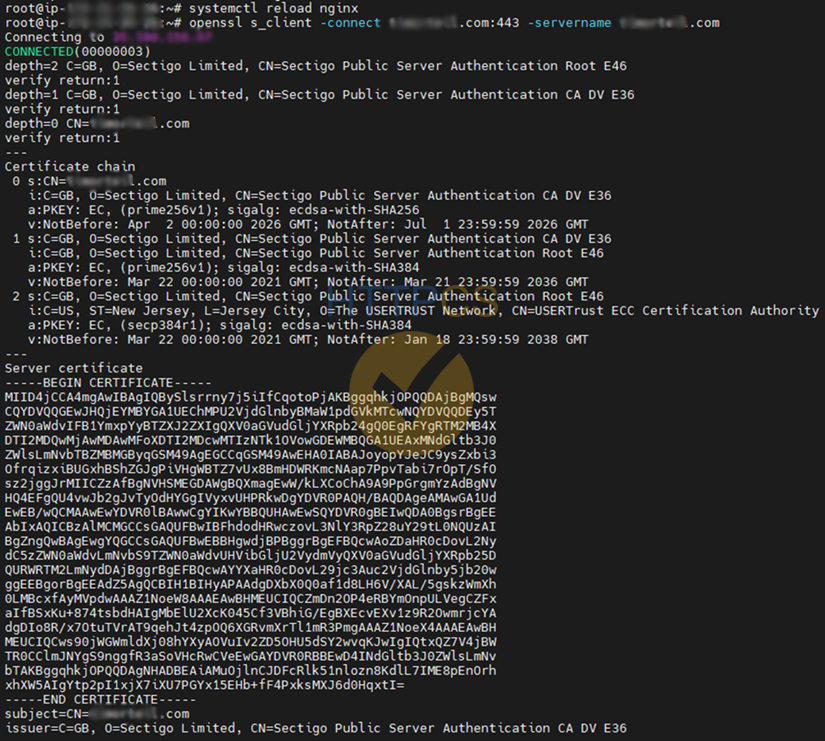
6. SSL verification
Verify using openssl and a browser.
openssl s_client –connect mydomain.tld:443 –servername mydomain.tld
Possible errors :
- Wrong certificate → check nginx path
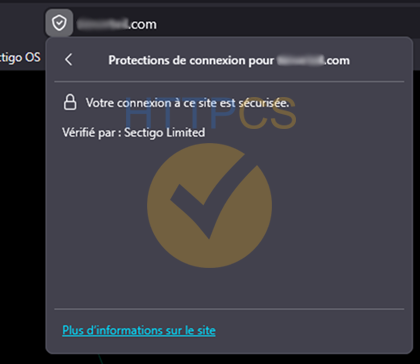
7. Browser verification
Confirm that the certificate is valid on the client side.
Possible errors :
- Certificate not trusted → CA chain issue
- Old certificate displayed → clear browser cache
8. Automatic renewal
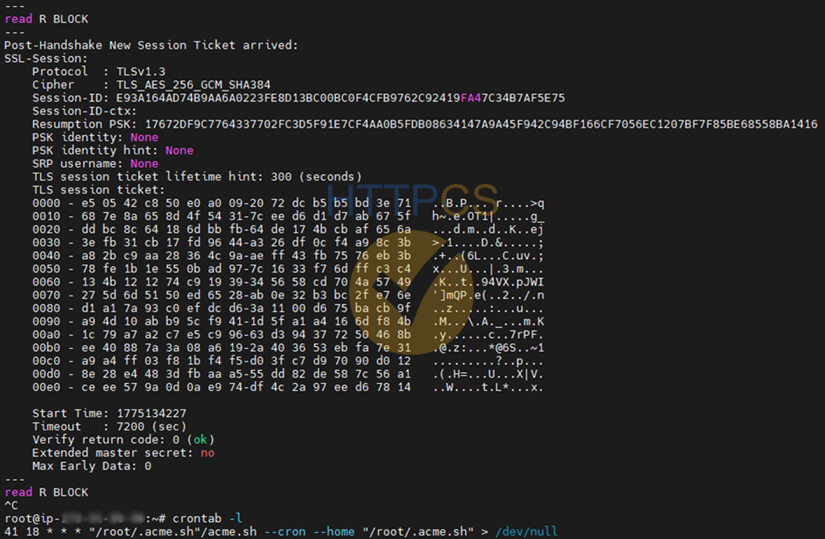
Check that the cron job for automatic renewal exists.
crontab -l
Possible errors :
- No cron job → reinstall acme.sh
- Certificate expired → test acme.sh --cron
Critical checks before installation
- The domain points to the server (DNS configured)
- Port 80 is publicly accessible
- Nginx is running
- SSL paths are correct
Best practices
- Always test with openssl after installation
- Never delete old certificates without verification
- Check the cron job regularly
Conclusion
The installation is complete when the certificate is active, recognized by the browser, and automatically renewed.